
1.1 Create Customer
The Create Customer feature in WIRX OMS allows users to add new customers to the system by entering their details through a guided, multi-step form. This process ensures that all relevant customer information is captured for operational, sales, and compliance purposes.
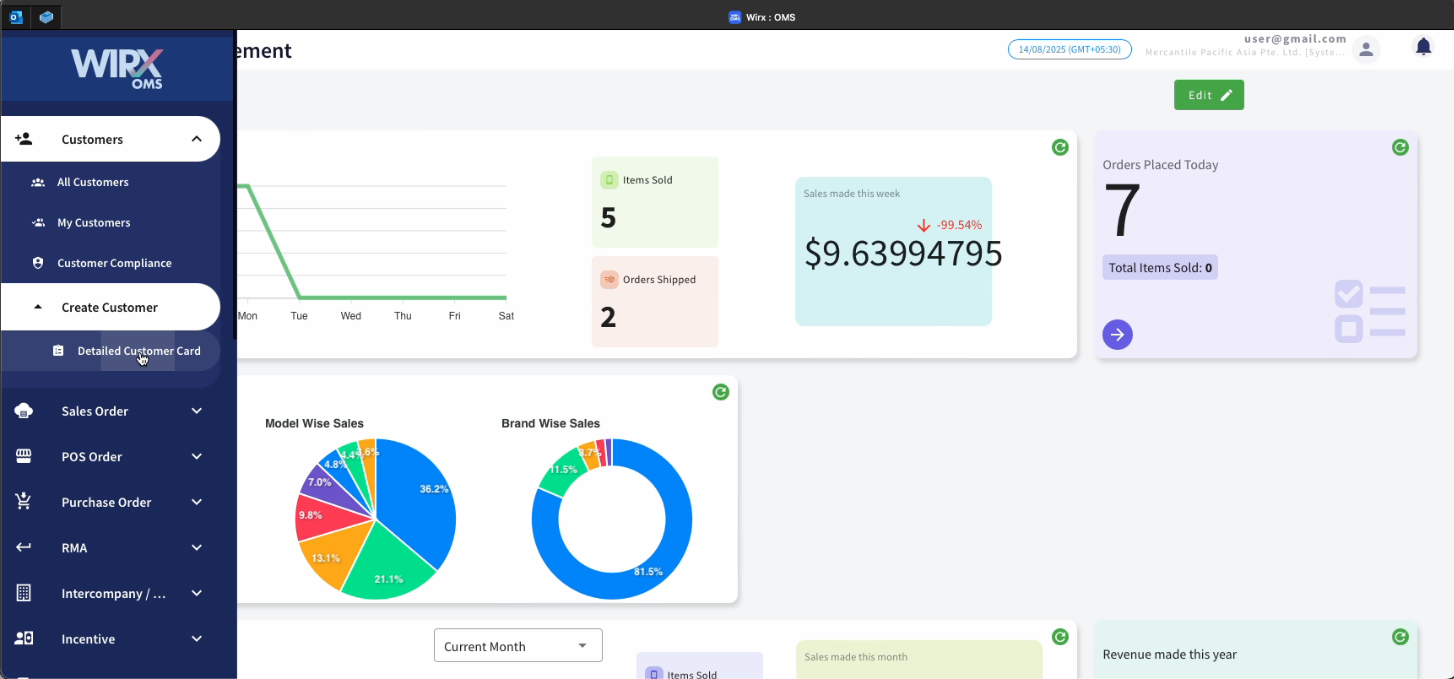
How to Create a Customer.
1.1.1 Steps to Create a Customer
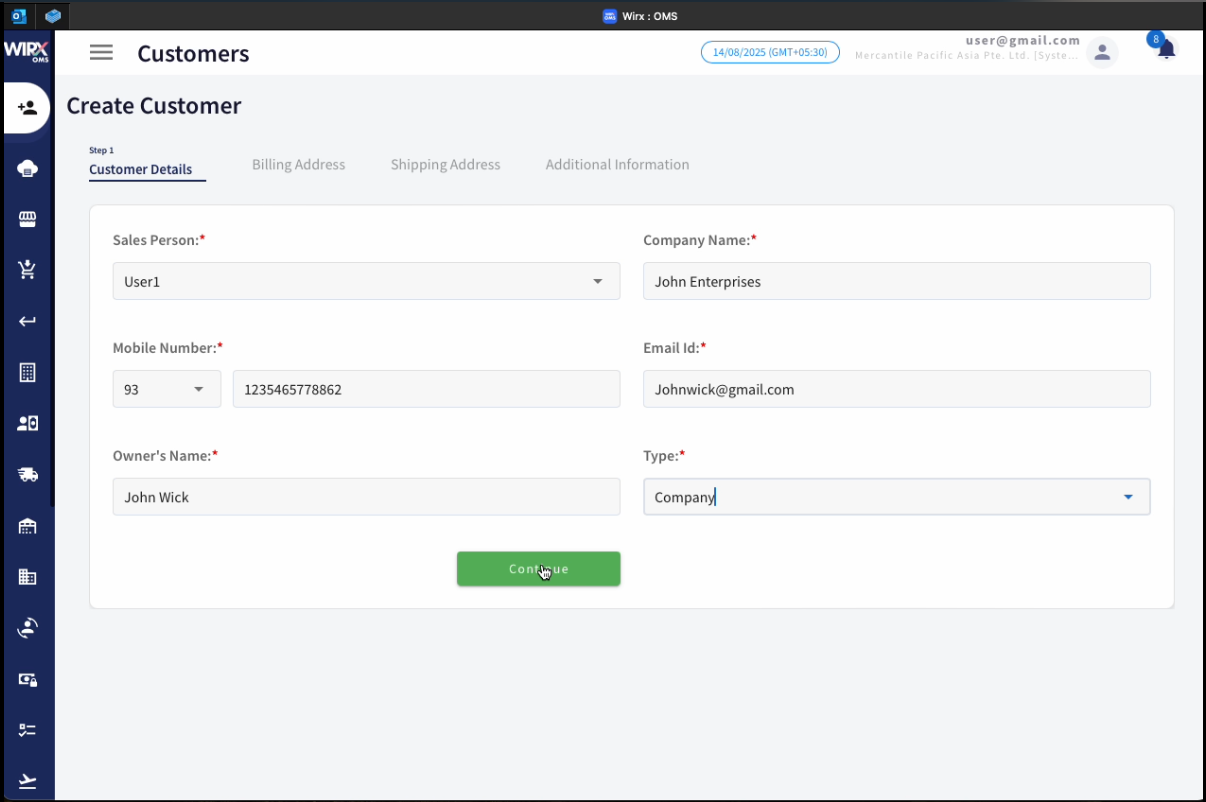
Step 1 – Customer Details
This section collects essential customer information:
-
Sales Person (Required) – Assign a sales representative responsible for managing the customer.
-
Company Name (Required) – Enter the legal name of the customer’s company.
-
Mobile Number (Required) – Include the country code and phone number.
-
Email ID (Required) – Provide a valid email address for correspondence.
-
Owner’s Name (Required) – Record the name of the business owner.
-
Type (Required) – Select the type/category of customer from the dropdown list.
Action: Click Continue to proceed to the next step.
Step 2 – Billing Address
This step captures billing-related contact and location information:
-
Contact Person (Required) – Name of the billing contact.
-
Company (Required) – Customer company name (can be same as above).
-
Mobile Number (Required) – Contact’s phone number with country code.
-
Address Line 1 & 2 (Required) – Complete billing address.
-
Address Line 3 (Optional) – Additional address details.
-
Postal Code (Optional) – Postal or ZIP code.
-
Country (Required) – Select country from dropdown.
Action: Click Continue to proceed.

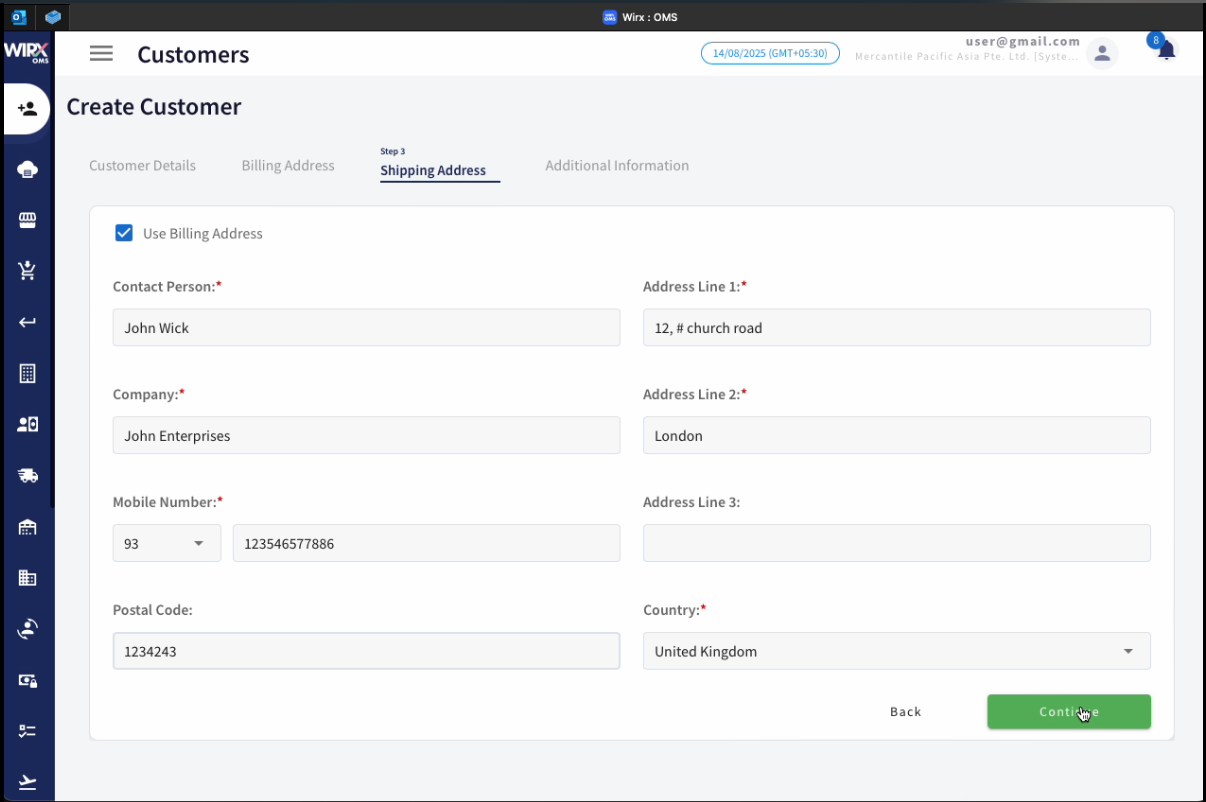
Step 3 – Shipping Address
This step records the customer’s shipping address:
-
Use Billing Address – Checkbox to auto-fill fields with billing details.
-
Contact Person (Required) – Name of the receiving contact.
-
Company (Required) – Company name for shipment.
-
Mobile Number (Required) – Contact number for deliveries.
-
Address Line 1 & 2 (Required) – Complete shipping address.
-
Address Line 3 (Optional) – Additional delivery instructions.
-
Postal Code (Optional) – Postal or ZIP code.
-
Country (Required) – Select from dropdown.
Action: Click Continue to proceed.
Step 4 – Additional Information
This step gathers compliance and supporting documentation:
-
VAT/GST Number – Customer tax registration number.
-
Remarks – Any relevant notes about the customer.
-
Tax Certificate – Upload or attach a file.
-
Business Registration Certificate – Upload or attach a file.
-
ID Proof (Passport or Driving License) – Upload or attach a file.
Action: Click Continue to proceed.

After the customer is created, the record remains pending approval and is forwarded to Customer Compliance for review and final approval.
No comments to display
No comments to display