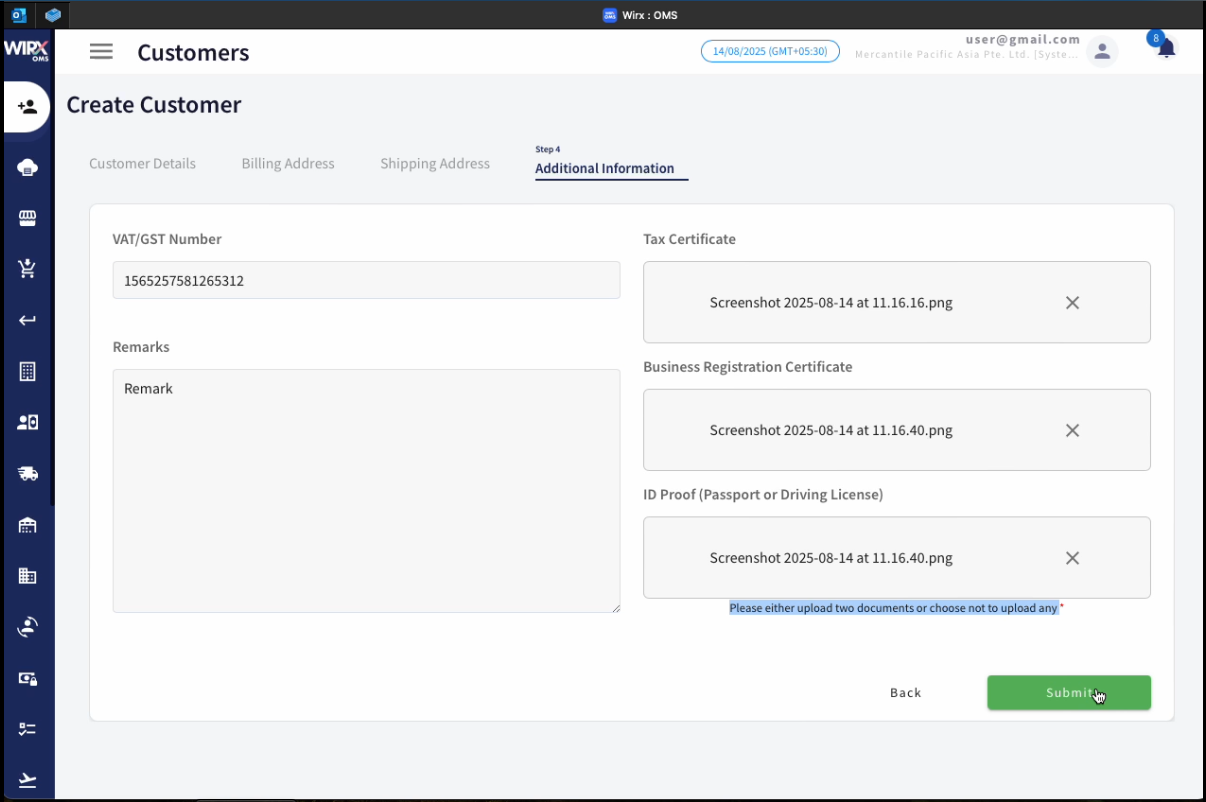
1.1 Create Customer
1.1 Create Customer
The Create Customer feature in WIRX OMS allows users to add new customers to the system by entering their details through a guided, multi-step form. This process ensures that all relevant customer information is captured for operational, sales, and compliance purposes.
1.1.1 Steps to Create a Customer
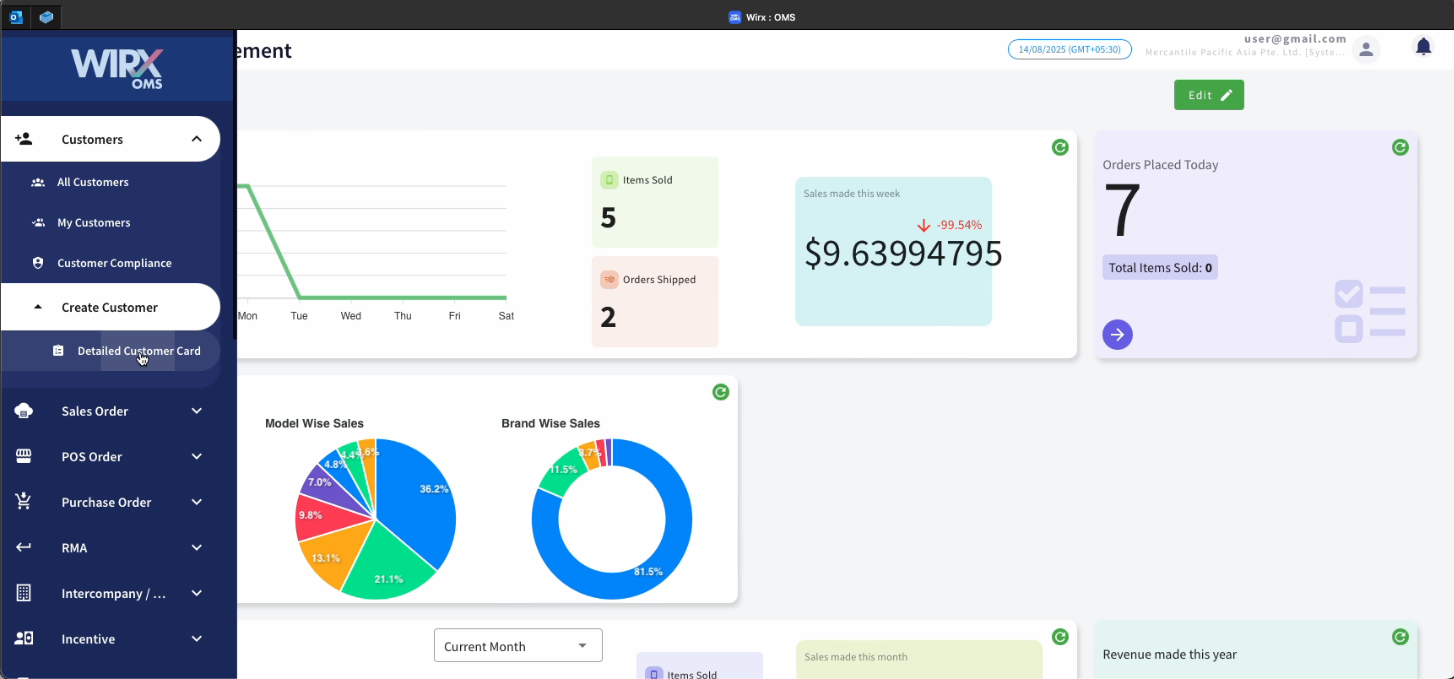
Step 1 – Customer Details
This section collects essential customer information:
-
Sales Person (Required) – Assign a sales representative responsible for managing the customer.
-
Company Name (Required) – Enter the legal name of the customer’s company.
-
Mobile Number (Required) – Include the country code and phone number.
-
Email ID (Required) – Provide a valid email address for correspondence.
-
Owner’s Name (Required) – Record the name of the business owner.
-
Type (Required) – Select the type/category of customer from the dropdown list.
Action: Click Continue to proceed to the next step.
Step 2 – Billing Address
This step captures billing-related contact and location information:
-
Contact Person (Required) – Name of the billing contact.
-
Company (Required) – Customer company name (can be same as above).
-
Mobile Number (Required) – Contact’s phone number with country code.
-
Address Line 1 & 2 (Required) – Complete billing address.
-
Address Line 3 (Optional) – Additional address details.
-
Postal Code (Optional) – Postal or ZIP code.
-
Country (Required) – Select country from dropdown.
Action: Click Continue to proceed.

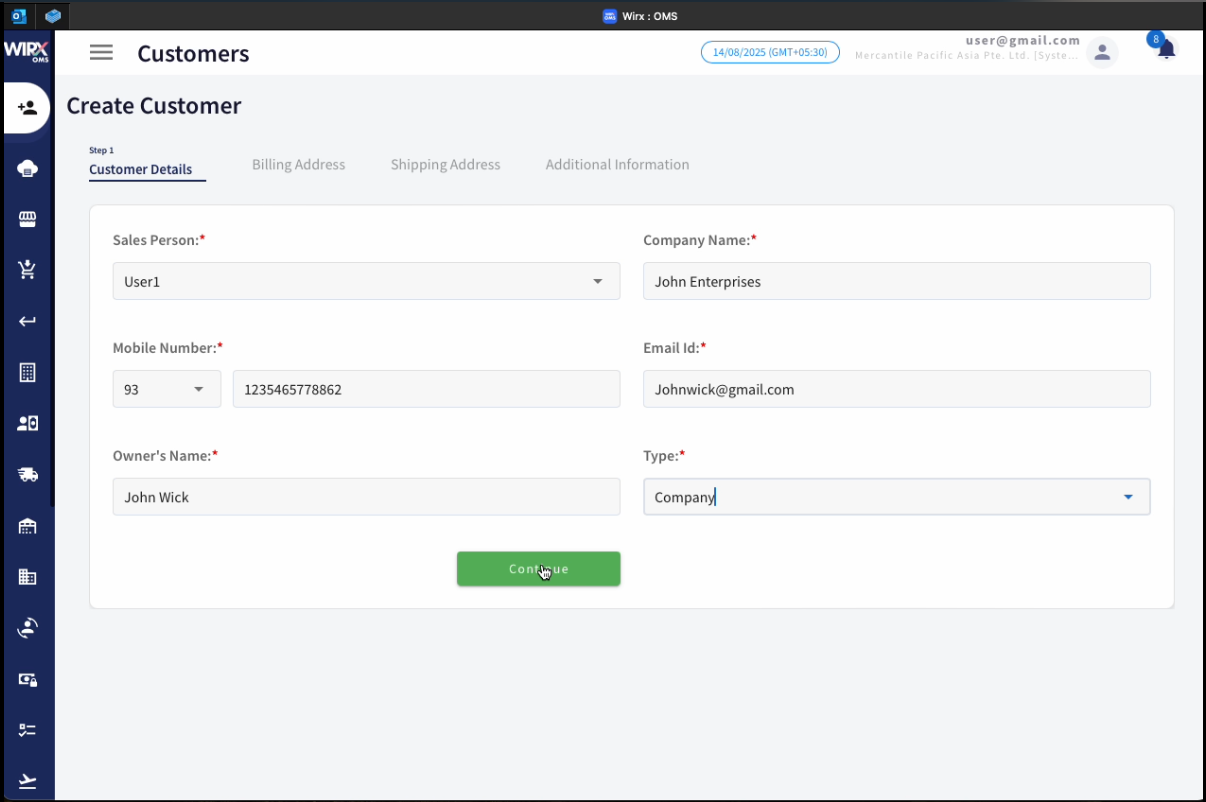
Step 3 – Shipping Address
This step records the customer’s shipping address:
-
Use Billing Address – Checkbox to auto-fill fields with billing details.
-
Contact Person (Required) – Name of the receiving contact.
-
Company (Required) – Company name for shipment.
-
Mobile Number (Required) – Contact number for deliveries.
-
Address Line 1 & 2 (Required) – Complete shipping address.
-
Address Line 3 (Optional) – Additional delivery instructions.
-
Postal Code (Optional) – Postal or ZIP code.
-
Country (Required) – Select from dropdown.
Action: Click Continue to proceed.
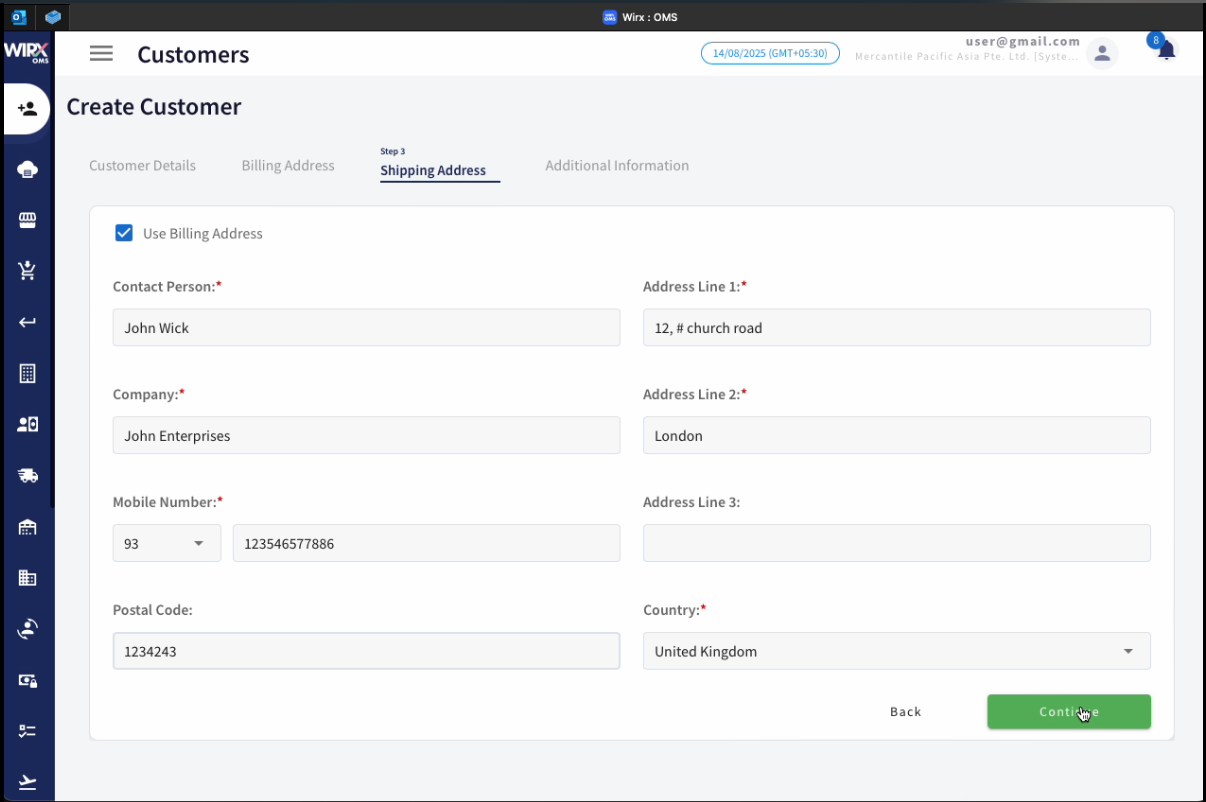
Step 4 – Additional Information
This step gathers compliance and supporting documentation:
-
VAT/GST Number – Customer tax registration number.
-
Remarks – Any relevant notes about the customer.
-
Tax Certificate – Upload or attach a file.
-
Business Registration Certificate – Upload or attach a file.
-
ID Proof (Passport or Driving License) – Upload or attach a file.